Key takeaways
Check what your CRM already does first. HubSpot creates contacts from emails in a connected team inbox, but it does not read the fields inside the message.
If your emails come from one or two senders in a fixed layout, a Zapier or Make parser is enough, and it usually costs tens of pounds a month.
AI extraction copes with emails that vary, attachments and free text, but it needs a review step for low-confidence fields.
Errors in this kind of automation are usually silent. Plan how you will notice a missed field or a duplicate before you switch it on.
A custom pipeline with us starts at £2,000 setup plus £400 a month. It is only worth it if you have high volume, varied emails or costly mistakes.
For most teams, the way to stop copying data from emails into your CRM by hand is a no-code email parser, such as Zapier Email Parser, Parseur or Mailparser, connected to HubSpot or Salesforce. If the emails vary in layout, carry attachments or need checking against your own records, a small custom service that uses AI to extract the fields, with a person reviewing anything uncertain, is more reliable.
We are a Glasgow-based team that builds data extraction services and CRM integrations. This post is for sales and operations teams who retype enquiries, orders and booking details from an inbox into a CRM. It compares the three routes on cost, accuracy, the volume each suits and how errors get caught. It also covers where a person should check a record before it goes into the CRM, and when you do not need us.
Three ways to get email data into a CRM
There are three realistic routes: use what the CRM does itself, chain a no-code email parser to the CRM, or have a small custom service built that extracts the fields with AI. They differ most in how they cope with emails that change layout, and how you find out when something goes wrong.
The figures below are a guide drawn from public pricing pages and our own projects, not quotes. Prices for US tools are in dollars because that is how they are sold. Check each vendor's pricing page before you commit.
| Route | Cost | Accuracy | Volume it suits | How errors are caught | Watch for |
|---|---|---|---|---|---|
| CRM built-in (HubSpot inbox, Salesforce Email-to-Case) | Included in your subscription. Salesforce Apex email services need a developer | Good at matching the sender to a contact. Does not read fields from the email body | Any volume, as long as you only need the sender and the thread logged | You see the logged email on the record and fix it by hand | HubSpot's team inbox creates a contact for every unknown sender. Salesforce has no Email-to-Lead feature |
| No-code parser (Zapier Email Parser, Make, Parseur, Mailparser) | Zapier's parser is free and you pay for Zapier tasks. Mailparser from $29.95 a month for 250 emails | High for emails in one fixed layout. Drops when senders change their templates | Tens to a few hundred emails a month from known senders | Failed runs show in the Zap or scenario history. Wrong values go in without a warning | Template parsers need rebuilding when a layout changes. Zapier's own parser cannot read attachments |
| AI parser tools (Parseur's AI engine, Airparser) | Airparser from $39 a month for 100 credits. Parseur has a small free tier | Good on varied layouts and attachments, less predictable than a template | Varied emails at low to moderate volume, where a subscription is simpler than a build | Some tools can send low-confidence fields to a person to check | You still need a way to match and de-duplicate against your CRM records |
| AppBespoke custom extraction | From £2,000 setup plus £400 a month, hosted and maintained by us | We combine fixed rules for known layouts with AI for the rest, and validate every field before it is written | Steady volume, many senders, attachments, or data that must be checked against your own systems first | A review queue for anything uncertain, alerts on failures, and a log of every record written | We are not worth it if your emails follow one fixed format. Use Zapier |
What HubSpot and Salesforce do on their own
Both CRMs can log emails against records and create contacts from senders. Neither reads fields such as an order number or a delivery date out of the email body by default.
HubSpot
When you connect a team address, such as sales@ or bookings@, to HubSpot's conversations inbox, every email from an unknown sender creates a contact record. You cannot turn that off. The only filter is the allow and deny list, which moves blocked senders to spam instead of creating a contact.
Personal connected inboxes behave differently. By default they log emails with people who are already contacts, and HubSpot creates contacts from emails you send, not from emails you receive. There is a setting under Email Log and Track to create contacts from logged emails, which some users still describe as a beta. HubSpot's AI feature that fills contact details from emails updates properties on contacts you already have. It does not create new records.
So HubSpot gets the sender's name and address into the CRM for free, but it will not turn "Order 4471, 12 units, deliver to Paisley on Friday" into deal properties without another tool.
Salesforce
Salesforce has no feature called Email-to-Lead. The usual workarounds are:
- Email-to-Case with a Flow. Mail to a dedicated address creates a case, a Flow creates a lead from it and then deletes the case.
- Apex email services. Salesforce gives you an inbound address, and a developer writes a handler class that parses each email in code.
- Web-to-Lead with a parser in front. An outside parser extracts the fields and posts them to the Web-to-Lead endpoint.
Salesforce's own guidance warns that forwarding rules which rewrite headers or tag the subject line, such as adding "[External]", can stop Email-to-Case matching replies to the right case. Test your forwarding before you rely on it.
When Zapier or Make is enough
A no-code CRM email parser is enough if your emails come from a small number of senders and each sender always uses the same layout. Web form notifications, marketplace lead alerts and booking confirmations from one system are the usual examples.
Zapier Email Parser gives you a mailbox address. You forward a sample email, highlight the fields you want, and Zapier learns the positions. Each new email triggers a Zap that creates or updates a contact or deal in HubSpot or Salesforce. The parser itself is free. You pay for the tasks each Zap uses, so the cost depends on how many emails arrive and how many steps each one runs.
Make has no dedicated email parser. People pair a custom mailhook with the Text Parser module and a CRM module. Use the mailhook rather than polling a mailbox on a timer, because polling uses operations whether or not any email has arrived.
Three things break these setups:
- A sender changes their template. Template parsing works from positions and patterns, so a new layout can put the wrong text in a field.
- Attachments and tables. Zapier's built-in parser reads the email body only. For PDFs or tables, Zapier points people to Mailparser or Parseur.
- Duplicates. HubSpot's create-or-update contact action matches on email address, which helps. A lead who writes from a second address still becomes a second contact.
If none of those apply to you, build it in Zapier this week and stop reading here.
When AI extraction is the better route
AI extraction is the better route when the emails vary: different senders, forwarded threads, free text written by customers, or details buried in a PDF. A language model reads the email the way a person would and returns the fields you asked for, so a new layout does not break it.
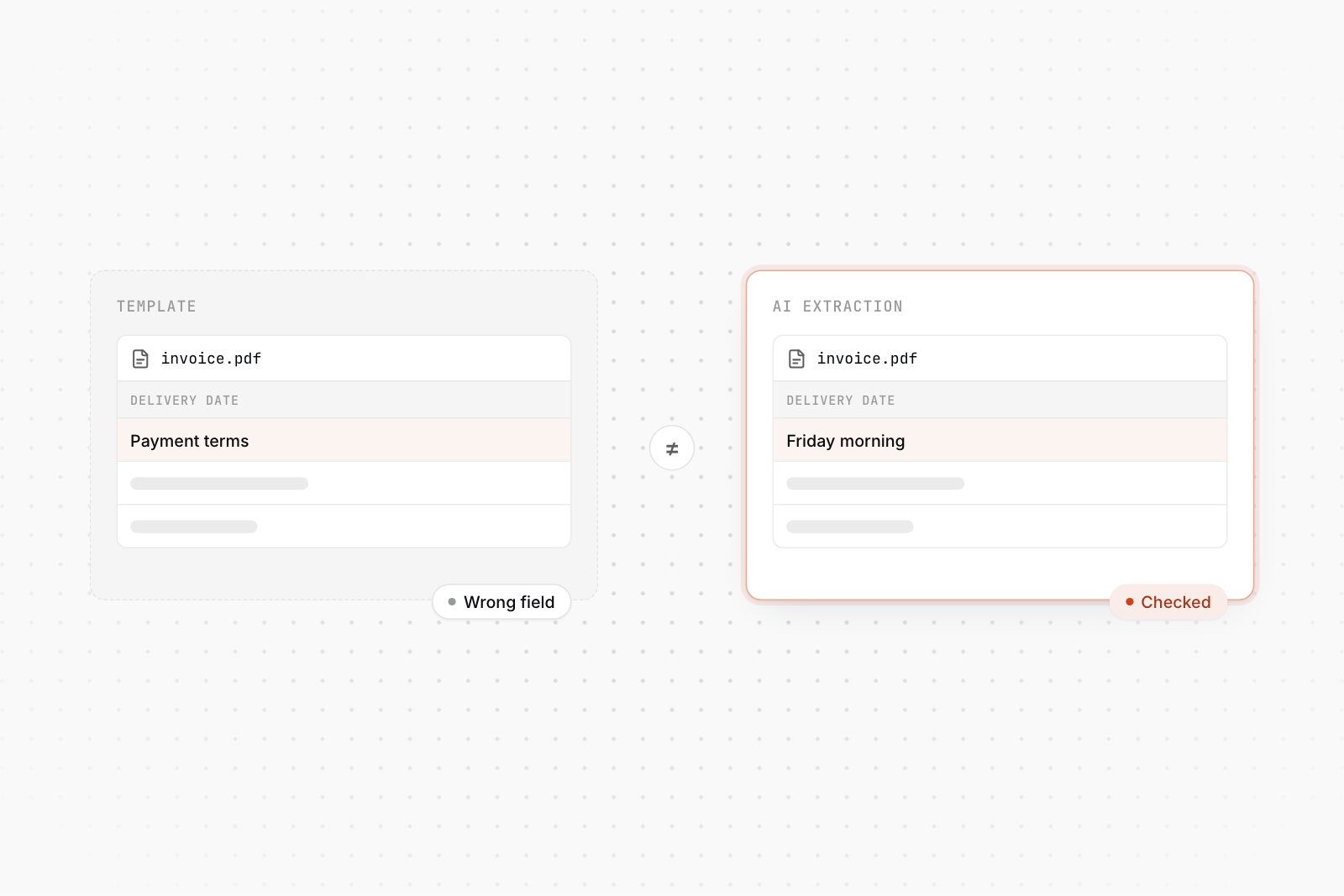
It is less predictable. A template parser either matches or fails, while an AI model nearly always returns an answer, and a wrong answer can look right. So AI extraction needs checks:
- Validation rules. A postcode must look like a postcode, a quantity must be a number, an order number must exist in your system.
- Confidence scores. Ask the model how sure it is of each field and send uncertain ones to a person.
- Matching before writing. Look the sender up in the CRM, by email and by company domain, before creating anything.
AI parser subscriptions such as Parseur's AI engine or Airparser give you some of this without a build. A custom service makes sense when the data has to be checked against your own database, when one email should update several records, or when the volume makes per-email pricing expensive.
Where a person should review data before it goes into the CRM
A person should review any record where a field failed validation, the model was unsure, or the write would change something that already exists. Everything else can go straight in, as long as it is logged.
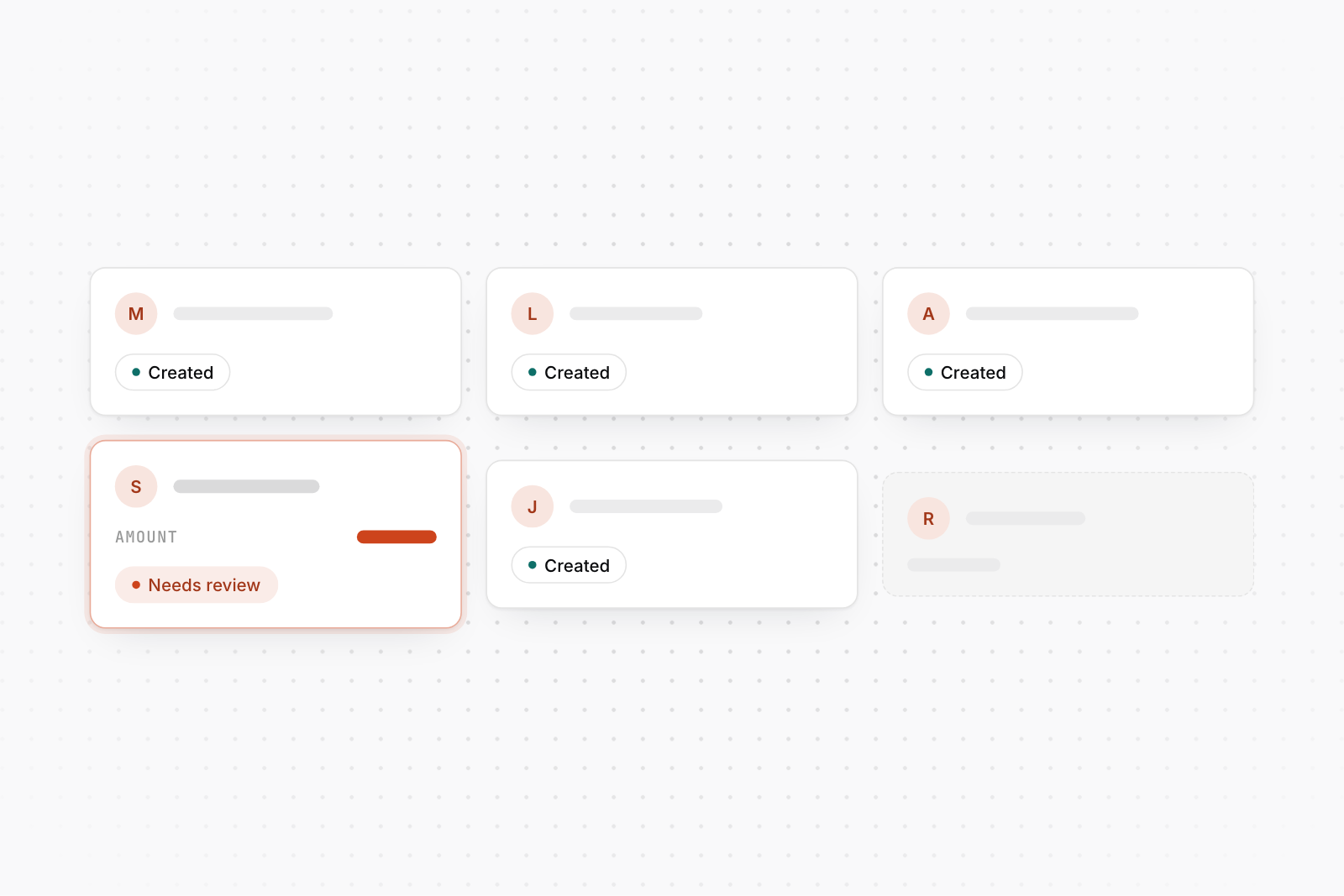
In practice we put the review step in four places:
- New companies and contacts that might be duplicates. If the name or domain is close to an existing record, a person decides whether to merge.
- Anything with money in it. Order values, quoted prices and discounts are checked before they reach a deal.
- Overwrites. If the email would change a phone number, owner or deal stage on an existing record, show the old and new values side by side.
- Low-confidence fields. The model flags them and the record waits in a queue instead of going in half right.
Show the original email next to the extracted fields on the review screen so checking is quick. If reviewers keep correcting the same field, fix the rule or the prompt.
The worst errors are the ones nobody sees. A failed Zap shows in the history, but a field that went in wrong does not. Whatever route you choose, check a sample of new records each week for the first month, and set an alert if the number of records created per day drops to zero or jumps.
How we build a custom email-to-CRM pipeline
We build in three stages, each with a check before the next starts.
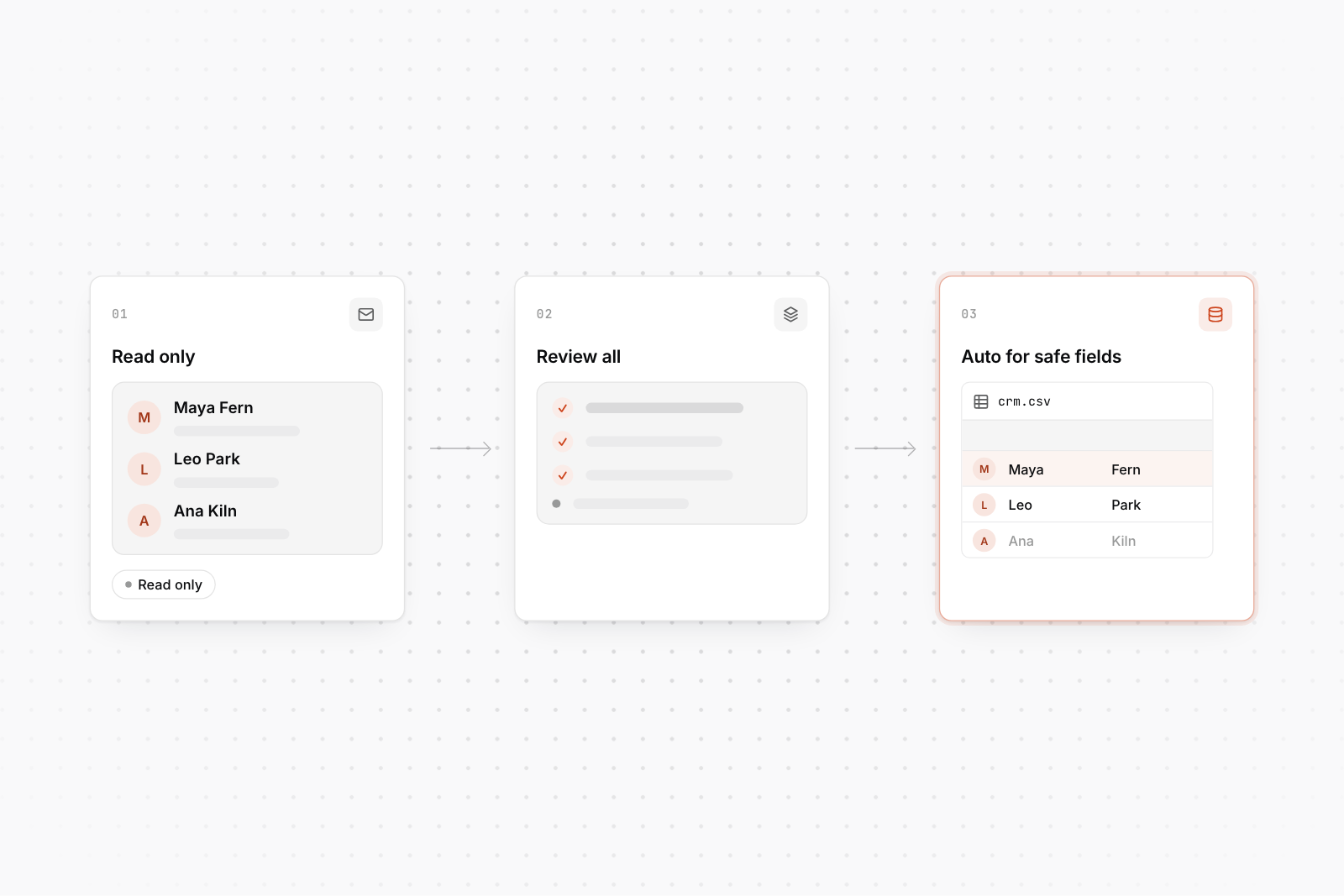
- Read only. The service reads a copy of the inbox and extracts fields into a log, writing nothing to the CRM. We compare its output with what your team typed for the same emails.
- Review everything. Every record goes to the review queue. Your team approves or corrects each one, and the corrections tell us which fields are reliable.
- Write automatically where it is safe. Fields and email types that passed review go straight in. Money, overwrites and uncertain fields stay in the queue.
A pipeline like this usually takes a few weeks to reach stage three. Our data extraction service is priced in tiers. The Pipeline tier is £2,000 setup and £400 a month for one source with scheduled runs, delivery to your database or an API, and failure alerts. The Pipeline and Intelligence tier, at £4,000 setup and £1,000 a month, adds AI classification and enrichment, up to five sources, a dashboard and delivery to a CRM. Larger work is quoted from £8,000.
When we are not the right fit
We are not the right choice if your emails follow one fixed format from one or two senders. A Zapier or Make parser will do the job for a fraction of our monthly fee, and you can set it up yourself in an afternoon.
We are also the wrong fit if:
- You only need the sender's name and address in the CRM. HubSpot's connected inbox already does that.
- You receive a handful of these emails a week. Copying them by hand costs less than any automation.
- The data is mainly in invoices or other documents rather than the email itself. Accounting capture tools may already cover it.
- You want an AI that replies to the customer. That is a different build from moving data into a CRM.
FAQ
FAQs
Does connecting an inbox to HubSpot automatically create contacts?
A team address connected to the conversations inbox creates a contact for every unknown sender, and you cannot switch that off. A personal connected inbox only logs emails with existing contacts by default, unless you turn on the setting to create contacts from logged emails.
Neither reads fields from the body of the email, such as order numbers or dates. For that you need a parser or an extraction service.
Does Salesforce have a built-in Email-to-Lead feature?
No. Teams build it from Email-to-Case with a Flow, from Apex email services with a developer writing the parsing code, or from an outside parser that posts to Web-to-Lead or the Salesforce API.
How much does Zapier Email Parser cost per email?
The parser is free. You pay for the Zapier tasks each parsed email uses, so the cost per email depends on your plan and how many steps the Zap runs. Count your monthly emails, multiply by the steps in the Zap and compare that with the task allowance on Zapier's pricing page.
Is an AI email parser better than a rule-based parser?
It is better when layouts vary, when senders write free text, or when the data is in attachments. A rule-based parser is cheaper and more predictable when every email follows the same template. Many teams use rules for their known senders and AI for the rest.
How do you catch errors before they reach the CRM?
Validate every field against simple rules, send low-confidence fields and overwrites to a person, and match against existing records before creating new ones. After launch, check a sample of new records each week and alert on sudden changes in the number created.