Key takeaways
A few dozen consistent documents need a template or capture tool, not a build.
Varied layouts at volume are usually best handled by AI extraction with a validation step.
The checks matter more than the extraction method: schema validation, totals that reconcile, confidence thresholds and a human review queue.
If Xero or Dext already handles your invoices, you do not need us.
The figures here are a guide for budgeting, not quotes.
The best way to extract tables from hundreds of PDF reports depends on how consistent the documents are. For a few dozen documents with the same layout, a template or capture tool is enough. For varied layouts at volume, AI extraction with a validation step is usually the best route.
We are a Glasgow-based team that builds web applications, APIs and AI tools. This post compares six methods, explains how we check results before they reach your spreadsheet, answers the Power Automate question, and says when you do not need us. It is written for finance and operations teams.
The six methods compared
There are six realistic ways to get tables out of PDFs: manual entry, invoice capture tools, template parsing, OCR, AI extraction and a custom pipeline. The table gives typical figures from our project experience and published tool pricing. They vary by document and change often, so test on your own files before committing.
| Method | Typical accuracy | Cost per document | Volume it suits | What breaks it |
|---|---|---|---|---|
| Manual entry | About 97% to 99% per field, with tired-eye slips | £1 to £5 in staff time, depending on table size | Under about 30 documents a month | Volume, and boredom on long tables |
| Invoice capture (Dext, Xero capture) | High on invoices, poor on anything else | Pence to about £1, usually inside a subscription | Invoices and receipts at any volume | Non-invoice reports, unusual layouts, tables that are not line items |
| Template parsing | 95% to 99% when the layout is fixed | Pence | A few dozen to thousands of identical documents | Layout changes, new suppliers, multi-page tables |
| OCR alone | 90% to 98% on clean scans, lower on poor ones | Pence | Scanned documents that need text first | Merged cells, skewed scans, tables with no ruled lines |
| AI extraction | Often 95% to 99% on varied layouts, once validated | About 2p to 50p in model and service usage | Hundreds to many thousands, with mixed layouts | Very poor scans, handwriting, tables that need business context |
| Custom pipeline | Depends on the checks around it, and can be tuned to your documents | Pence at volume, after a build cost | Steady high volume or rules specific to your business | Low volume, where the build never pays back |
| AppBespoke | See the custom row | See the custom row | We build the custom pipeline and can set up AI extraction | We do not resell capture tools, and we are not a data entry service |
Accuracy figures are ranges, not promises. The same method can score very differently on two sets of reports, which is why we test on a sample first.
What each method does well
Each method suits a different mix of documents, and the cheapest one that handles yours properly is usually the right one.
Manual entry
A person types or copies the numbers. This is fine for a handful of documents a month, and you get a human check for free. It stops working as volume grows, and errors creep in on long tables.
Invoice capture tools
Dext and the capture built into Xero read supplier invoices and receipts and send them into your accounts. They do that job well. They are built around invoice fields such as supplier, date, tax and total, so they struggle with reports that hold a table of results, readings or schedules. If invoices are your main case, see how to extract data from invoices and PDFs.
Template parsing
You mark where the table sits once, and the tool applies that to every document with the same layout. It is cheap and accurate while the layout stays put. A new supplier, a moved column or a change in page layout breaks it, often without warning.
OCR
OCR turns an image of text into characters. You need it for scanned reports, but on its own it gives you text, not a table. It loses the structure where cells are merged or gridlines are missing.
AI extraction
AI extraction reads the page as a person would, finds the table and returns the rows in a fixed structure. It copes with layouts it has not seen before, which is why it suits varied reports at volume. It can still misread a cell with confidence, so it needs checks around it.
Custom pipeline
A custom pipeline joins the steps together: collect files, work out whether each is a scan, extract, validate, route exceptions and write to your spreadsheet or database. It earns its cost when volume is steady or your rules are specific. Our data extraction service covers this.
What breaks extraction
Four things break most extraction projects: scanned reports, merged cells, layout changes and multi-page tables.
- Scanned reports. A scan is a picture. It needs OCR first, and quality varies with the scanner, the paper and any skew. Ask for the original digital file where you can.
- Merged cells. A header spanning three columns confuses rule-based tools. AI methods cope better, but check those tables first.
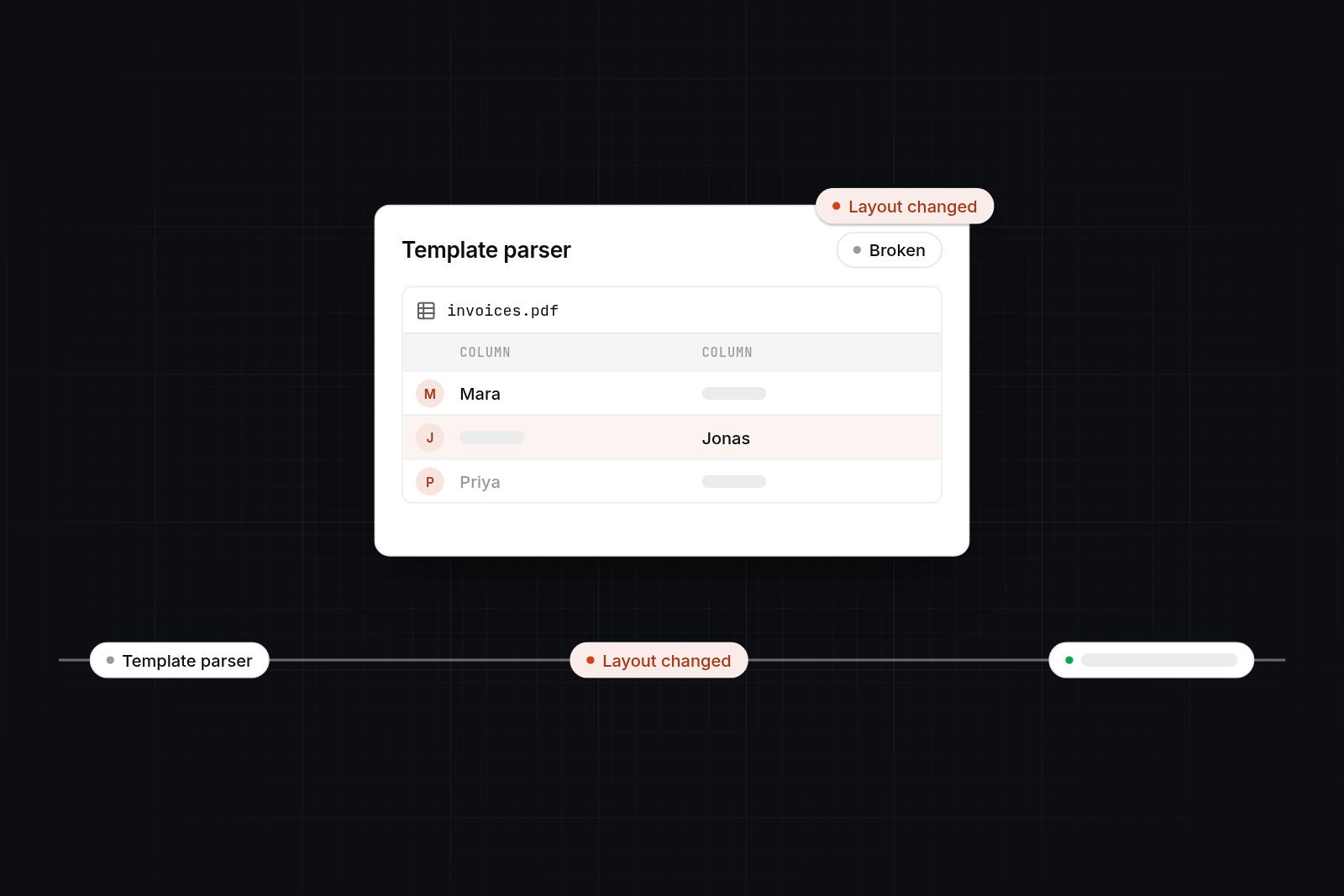
- Layout changes. Templates fail the moment a supplier updates their format. Plan for someone to notice.
- Multi-page tables. Repeated headers, rows split across pages and totals on the last page all need handling. Test with your longest documents, not your tidiest.
How results are checked before they reach the spreadsheet
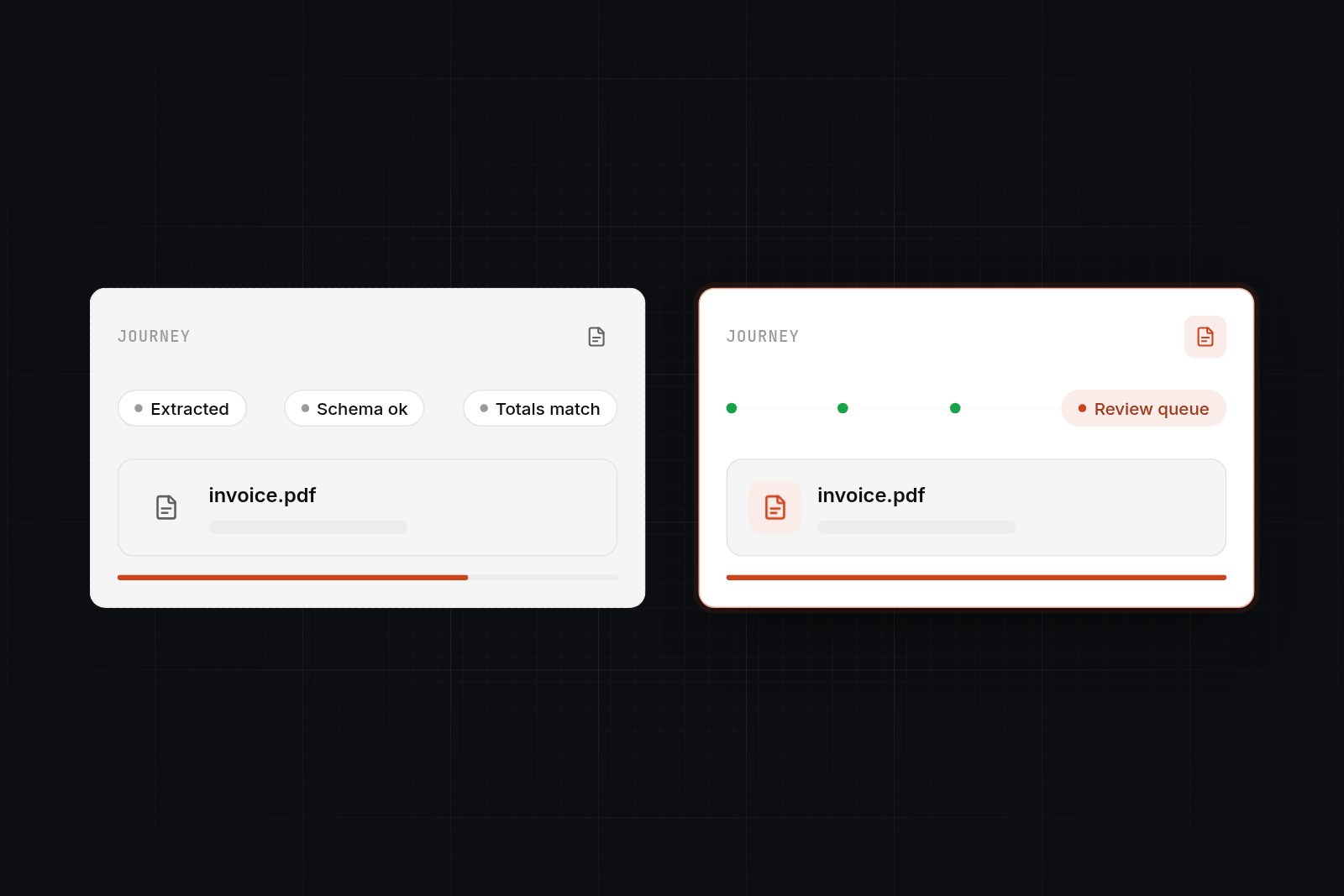
Results are checked in four parts: schema validation, reconciled totals, confidence thresholds and a human review queue. Extraction is the easy part to demo, and these checks are what make the output trustworthy.
- Schema validation. Every table must have the expected columns, and each value must be the right type. A date in a number column or a missing column is rejected straight away.
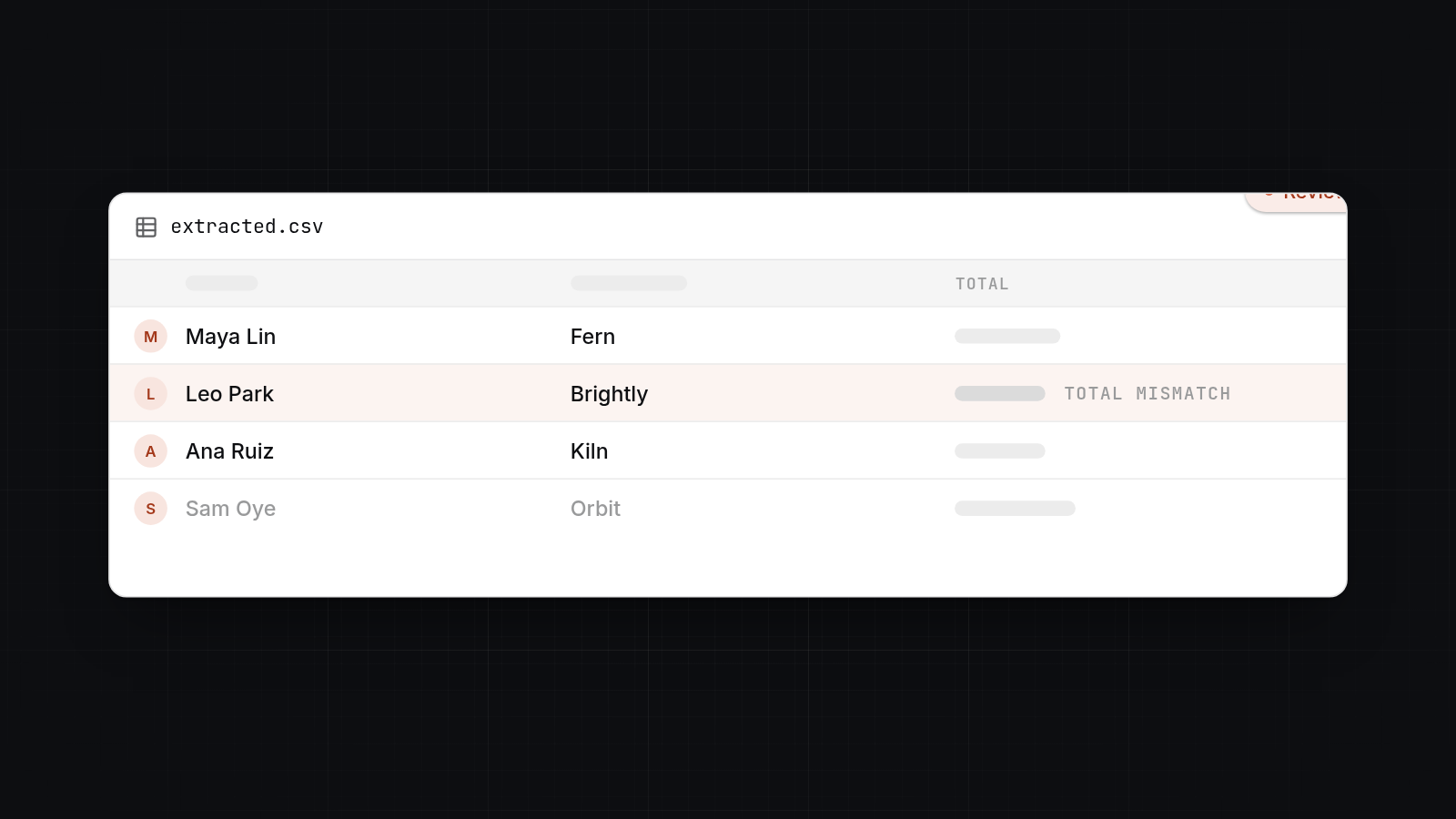
- Totals that must reconcile. Line items should add up to the stated subtotal, and subtotal plus tax should equal the total. A mismatch usually means a misread digit, and this check catches most of them.
- Confidence thresholds. The extraction step scores how sure it is of each value. Anything below a threshold you set is held back instead of being written through.
- A human review queue. Held-back items go to a simple screen showing the original page beside the extracted rows. Someone fixes the value, approves it and moves on. The corrections also give you a record of where the system struggles.
We also keep a link from every spreadsheet row back to the source file and page, so anyone can check a number against the original. We suggest testing on 10 to 20 of your hardest documents before running the full batch, and measuring accuracy by cell, not by document.
Can Power Automate pull data from a PDF?
Yes. Power Automate can pull data from a PDF through its AI Builder document processing models, or by passing the file to another service. It works best on consistent, text-based documents such as standard invoices, and it fits well if you already use Microsoft 365. AI Builder usage is billed on credits, so check current licensing before you plan around it.
It is less comfortable with varied layouts, long multi-page tables and cases where the checks above matter. You can build those checks into a flow, but the flow becomes hard to maintain. Excel's own Get Data from PDF option is another route for clean, text-based files, and suits one-off imports. For hundreds of reports with mixed layouts, we usually move the extraction into a small pipeline and use Power Automate only for the hand-off.
What it costs
A custom extraction pipeline for one report type typically costs from about £3,000 to £8,000 to build, and takes two to five weeks. Several layouts, a review screen and integration into your own systems push it towards £8,000 to £15,000 and 5 to 8 weeks. These are examples, not quotes. For wider context, see our cost to build a custom web application guide.
Running costs are modest. Hosting is typically £20 to £100 a month, and model usage at a few hundred documents a month is often tens of pounds. Budget 15% to 25% of the build cost each year for upkeep, because layouts and models change. Our post on the cost to maintain a custom web application per year goes into this.
A simple sum helps. If staff spend 10 hours a week re-keying tables at £15 an hour fully loaded, that is about £7,800 a year. A build in the lower range could pay back inside a year. If it is two hours a month, it will not.
When we are not the right choice
We are the wrong choice in four cases.
- Xero or Dext already handles your invoices. If the documents are supplier invoices and the data goes into your accounts, use the tool you have. It is cheaper and maintained for you.
- The volume is too low. Under a few dozen documents a month, manual entry or a template tool costs less than a build.
- Your layouts are identical and stable. A template parser or Excel's PDF import will do the job.
- You want a managed data entry service. We build software. We do not key in data for you.
We are a good fit when layouts vary, volume is steady, the checks matter and the results need to land in your own systems.
Next step
If you are weighing up which route fits your reports, book a 30-minute video call with us. We will look at a sample of your documents and tell you plainly whether a tool you already own is enough. If a build is a fit, the next step is our £750 technical planning day, where we scope the pipeline, the checks and the cost.
FAQ
FAQs
What is the best way to extract tables from a PDF?
It depends on the file. For a single digital PDF with a clear table, Excel's Get Data from PDF option or a template tool is quick and free or cheap. For scans, OCR comes first. For many documents with different layouts, AI extraction with validation and a review queue gives the best balance of accuracy and effort.
Can Power Automate pull data from a PDF?
Yes. AI Builder models can read invoices and forms, and flows can pass files to other services. It suits consistent documents and Microsoft 365 users. Varied layouts and long tables need more checking than a flow handles comfortably.
How to copy a whole table in PDF?
For a digital PDF, select the table with your mouse in a PDF reader, copy it, paste it into Excel, then tidy the columns. Adobe Acrobat can also export a page to Excel. A scanned PDF has no text to select, so you need OCR first. Copying works for one table. It does not scale to hundreds of reports.
How do I know the extracted numbers are right?
Check them by rule, not by eye. Totals should reconcile, values should match the expected type, and anything the system is unsure of should go to a person. A link back to the source page lets you verify any figure quickly.